
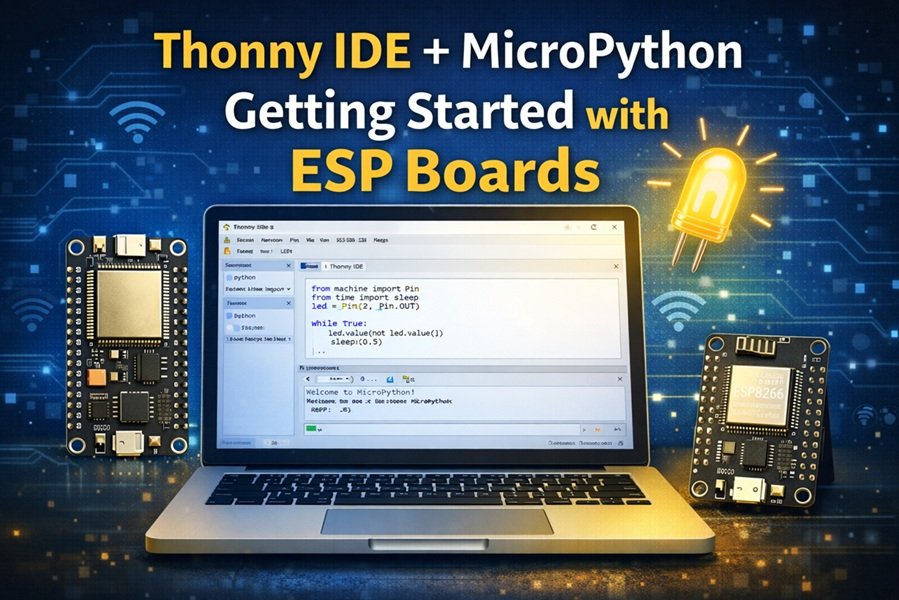
Getting Started with Thonny MicroPython IDE for ESP32 and ESP8266
Your First LED Blinking with MicroPython and Thonny IDE
Programming ESP32 and ESP8266 boards with MicroPython becomes much easier when you use a proper IDE. Thonny IDE is one of the simplest and most reliable tools for writing, uploading, and testing MicroPython scripts on ESP boards.
After completing this guide, you will have:
- Thonny IDE installed on your computer,
- MicroPython firmware flashed on your ESP32 or ESP8266,
- and your first Python script running successfully to blink an LED.
This tutorial works with ESP32, ESP8266, and NodeMCU boards on Windows, Mac OS X, and Linux.
Read This: MicroPython: HTTP GET Requests with ESP32 and ESP8266
What Is MicroPython?
MicroPython is a lightweight re-implementation of the Python 3 programming language designed specifically for microcontrollers and embedded systems.
Although MicroPython syntax is very similar to regular Python, there are some important differences.
| Aspect | Regular Python | MicroPython |
|---|---|---|
| Runs On | Desktop PCs | Microcontrollers |
| Standard Libraries | Complete | Limited subset |
| Hardware Access | Not available | Built-in GPIO modules |
| Memory Footprint | Large | Very small and optimized |
Because microcontrollers have constrained resources such as limited RAM and processing power, MicroPython only includes essential libraries. However, it adds modules like machine, network, time, and ujson to control hardware directly.
Why Use Thonny IDE?
Many IDEs are available for MicroPython development, including uPyCraft and VS Code extensions. Through experimentation, Thonny IDE has proven to be one of the best options.
Key advantages of Thonny IDE:
- Very easy to install and use,
- Built-in tools for flashing firmware,
- Integrated REPL terminal,
- Simple file manager for ESP filesystem,
- Fast code testing and debugging.
For new learners and professionals building IoT solutions, Thonny provides a clean environment without unnecessary complexity.
Installing Thonny IDE
Let’s start by installing Thonny IDE according to your operating system.
A) Installing Thonny IDE on Windows
- Open your web browser and go to: https://thonny.org
- Download the installer for Windows PC.
- Once downloaded, run the
.exeinstaller file. - Follow the installation wizard. Simply click Next until the installation is complete.
- After installation, open Thonny IDE from the Start Menu.
When you open Thonny IDE, you should see:
- an Editor section at the top,
- and the MicroPython Shell at the bottom.
B) Installing Thonny IDE on Mac OS X
Installation on Mac is also straightforward:
- Go to https://thonny.org and download the Mac OS X version.
- Open the downloaded
.dmgfile. - Drag the Thonny application to the Applications or Desktop folder.
- Double-click the Thonny icon to launch the IDE.
Tip: Thonny IDE comes pre-installed on Raspberry Pi OS, so Raspberry Pi users do not need to install it manually.
C) Installing Thonny IDE on Linux
On Linux, installation depends on your distribution.
For Ubuntu-based systems, install Python dependencies first:
sudo apt install python3 python3-pip python3-tk
Then install Thonny using pip:
sudo pip3 install thonny
For Fedora:
sudo dnf install thonny
After installation, open the IDE by typing thonny in the terminal or by searching for it in your applications menu.
Flashing MicroPython Firmware on ESP Boards
Thonny IDE is not only used to write scripts; it also helps you upload MicroPython firmware to ESP32 and ESP8266 boards.
Is Flashing Reversible?
Yes. Flashing MicroPython on your ESP board is completely reversible. Even after installing MicroPython, you can later upload Arduino sketches to the same board using Arduino IDE without any issue.
Steps to Flash Firmware Using Thonny
- Connect your ESP32 or ESP8266 board to your computer via USB cable.
- Open Thonny IDE.
- Navigate to:
Tools → Options → Interpreter
- Select the appropriate interpreter:
- MicroPython (ESP32) – if you are using ESP32,
- MicroPython (ESP8266) – if you are using ESP8266.
- Choose the correct COM/serial port.
- Click on the option: Install or update MicroPython.
- In the firmware window, verify:
- Port
- Board
- Firmware version
- Click the Install button.
Within a few seconds, the firmware flashing process will finish.
Important for ESP32: You may need to press and hold the BOOT button while flashing.
Using the MicroPython REPL
Once MicroPython firmware is installed, Thonny automatically opens an interactive MicroPython terminal.
You should see the >>> symbol in the Shell. This represents the MicroPython REPL prompt.
Testing the REPL
Run this command:
help()
If everything is correct, your ESP board will respond by printing built-in help information.
Another quick test:
print('Hello World')
Thonny will immediately display:
Hello World
This confirms that Thonny IDE is communicating correctly with your MicroPython-powered ESP board.
Turning On the On-Board LED Using REPL
Let’s test hardware control directly from the Shell.
Open the machine module:
from machine import Pin
Create LED pin object:
led = Pin(2, Pin.OUT)
On ESP32
led.value(1)   # LED ON
led.value(0)   # LED OFF
On ESP8266
The ESP8266 built-in LED uses inverted logic.
led.value(0)   # LED ON
led.value(1)   # LED OFF
If these commands work, your environment is fully prepared for MicroPython development.
Writing Your First Script in Thonny IDE
Now let’s write a simple program to blink the built-in LED.
MicroPython LED Blinking Script
Copy this code into Thonny Editor:
from machine import Pin
from time import sleep

led = Pin(2, Pin.OUT)

while True:
    led.value(not led.value())
    sleep(0.5)
Running the Script
- Click the green Run icon in Thonny IDE.
- The ESP32/ESP8266 on-board LED will start blinking.
To stop execution:
- press the Stop button,
- or use CTRL+C.
Saving Code Permanently to ESP Filesystem
If you want your script to run automatically whenever the ESP board powers on, you must save it to the device filesystem.
Save as main.py
- Stop the script.
- Go to:
File → Save as…
- Select: MicroPython device
- Name the file:
main.py
- Click OK.
Now restart your ESP board using the RST/EN button.
If power is removed and applied again, the board will automatically execute main.py, and your LED blinking will resume without needing Thonny.
Troubleshooting Common Thonny IDE Errors
While working with ESP boards, some issues may appear.
1) Unable to Connect to COM Port
Error example:
Unable to connect to COM5
Solutions:
- Make sure the correct port is selected in Interpreter settings.
- Unplug and plug back the USB cable.
- Click Stop/Restart backend to re-establish the connection.
2) Could Not Connect to REPL
Could not connect to REPL
- Ensure the board is flashed with MicroPython firmware.
- Close Arduino IDE or any serial monitor using the same port.
- Restart Thonny IDE.
3) Brownout Detector Triggered
Brownout detector was triggered
This usually indicates insufficient power.
Fix:
- Use a shorter, good-quality USB data cable.
- Try another USB port.
- Use externally powered USB hub.
Thonny IDE Overview
Thonny IDE provides:
- Editor – for writing scripts,
- Shell – for real-time testing,
- and optional tabs like Variables and Filesystem manager.
The Variables tab can be helpful to monitor program variables during execution.
Wrapping Up
In this tutorial, you learned:
- How to install Thonny IDE,
- How to flash MicroPython firmware on ESP32 and ESP8266,
- How to use REPL for instant hardware testing,
- and How to run your first permanent MicroPython script.
Thonny IDE is an excellent tool for starting your MicroPython journey with ESP boards. With this foundation, you can now build advanced IoT projects like:
- HTTP communication,
- wireless automation,
- sensor data logging,
- and cloud integrations.
MicroPython Next Steps
You may also explore related tutorials:
- MicroPython: HTTP GET Requests with ESP Boards
- MicroPython GPIO Control Basics
- Using Wi-Fi with ESP32 in MicroPython
These topics will integrate perfectly with your IoT development and experiments to mitigate interference in wireless networks.


